Source Aligned Data Product - Example Implementation#
Disclaimer
This page is being revamped with live code and steps will be modified in near future.
Overview#
This implementation reads from two kafka topics and writes into respective delta tables. It utilizes the template scaffolding generated using steps mentioned in set-up-repo-using-copier.
For details about the code, please refer the project repo here
Modifying the templates - Step by Step Process#
Once the project scaffolding was setup in the repo, below steps were followed:
-
Modified the src directory for actual code
- The src folder above contains the actual code within the mdm_streaming_refdata folder.
- Under mdm_streaming_refdata folder, all the required libraries, configuration and main code blocks were added
Hold "Alt" / "Option" to enable Pan & Zoom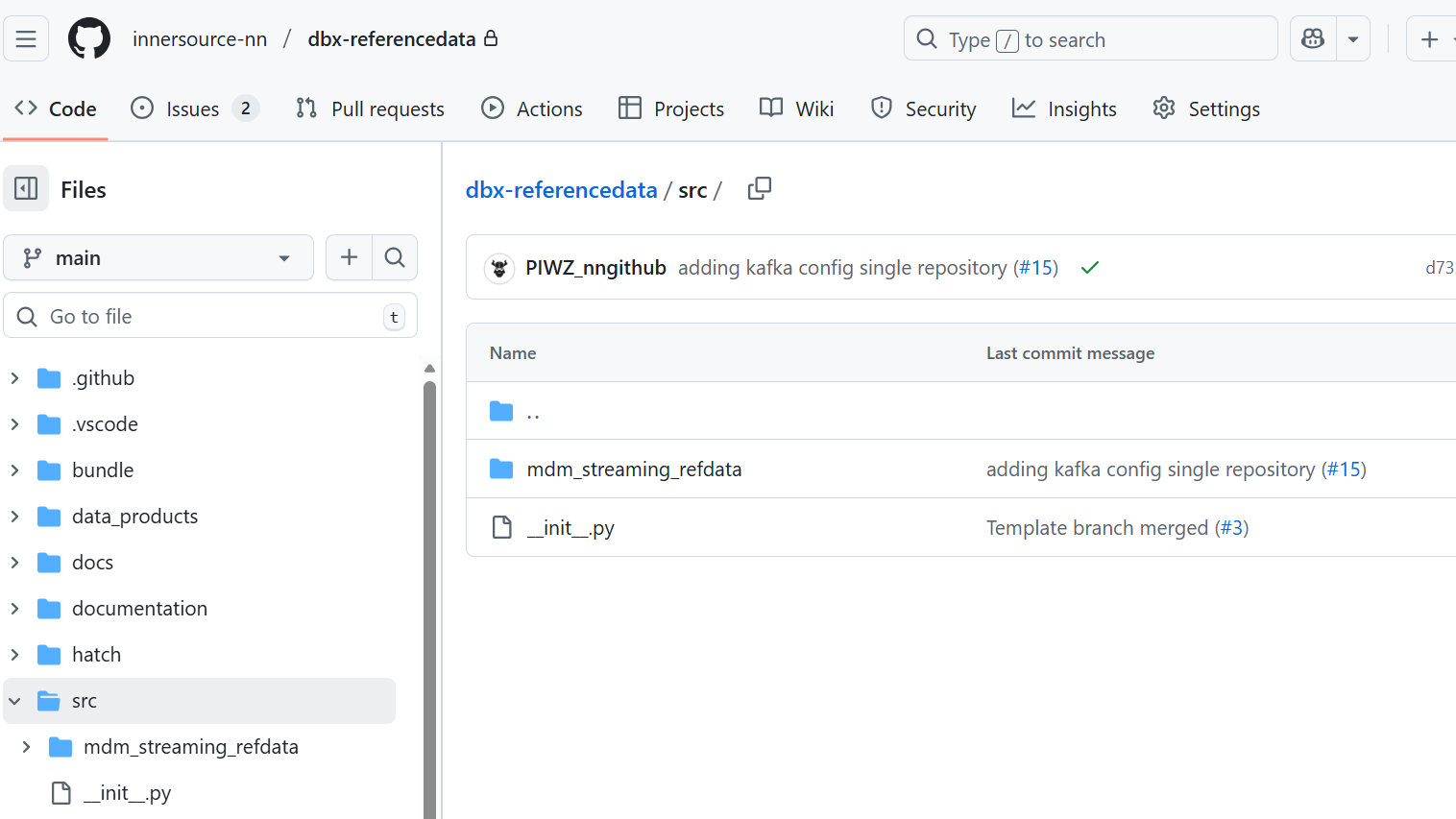
Note
Multiple directories can be created under the src directory, the templates don't restrict this
-
Added relevant contracts and config for NNDM in data_products folder
For this project one config file and 3 data contracts have been added in the contracts sub-folder.
Hold "Alt" / "Option" to enable Pan & Zoom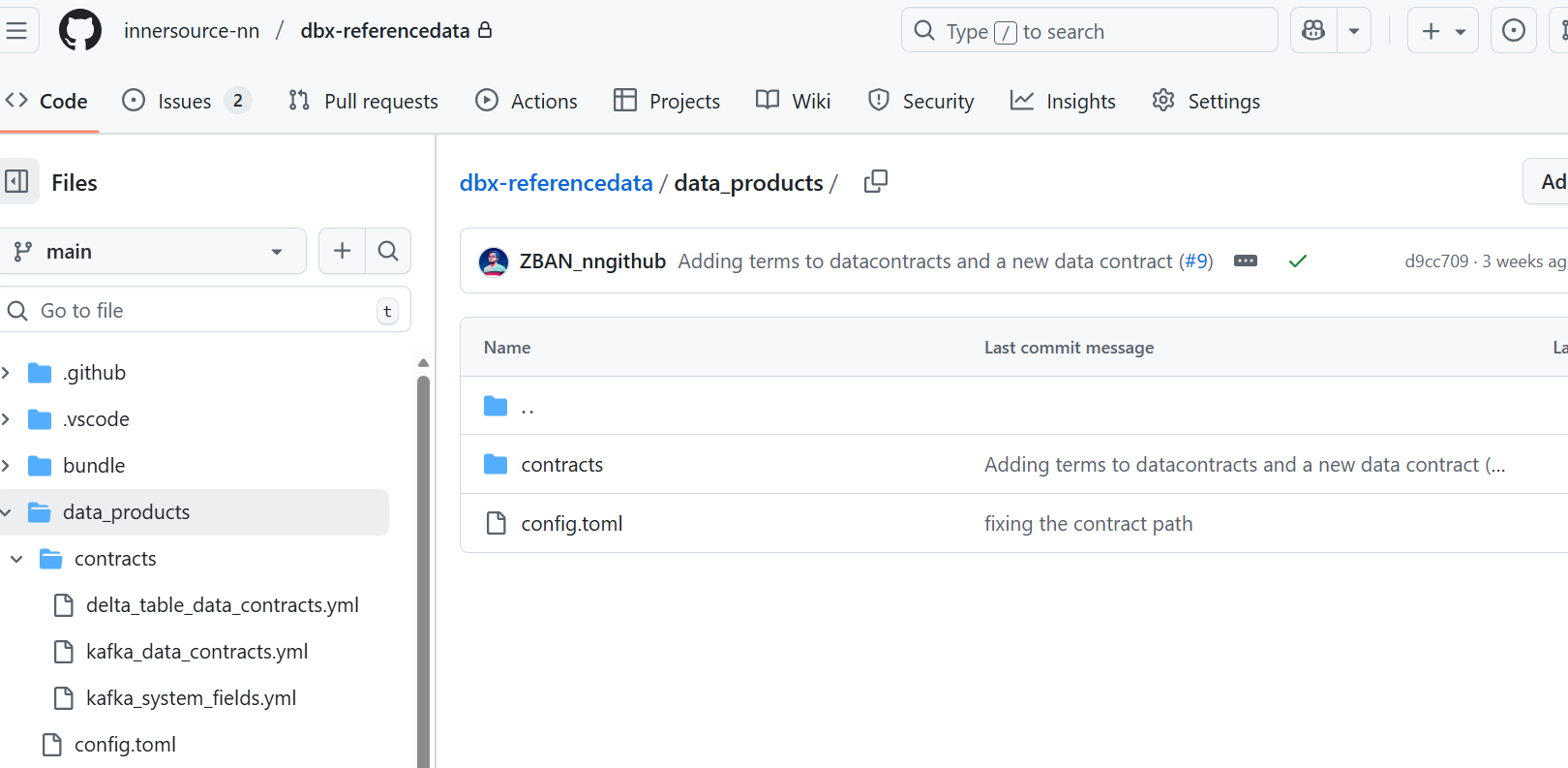
-
Added unit and acceptance tests under the tests folder
Multiple units test were added under unit sub-folder and acceptance feature was added in the integration/features subfolder
Hold "Alt" / "Option" to enable Pan & Zoom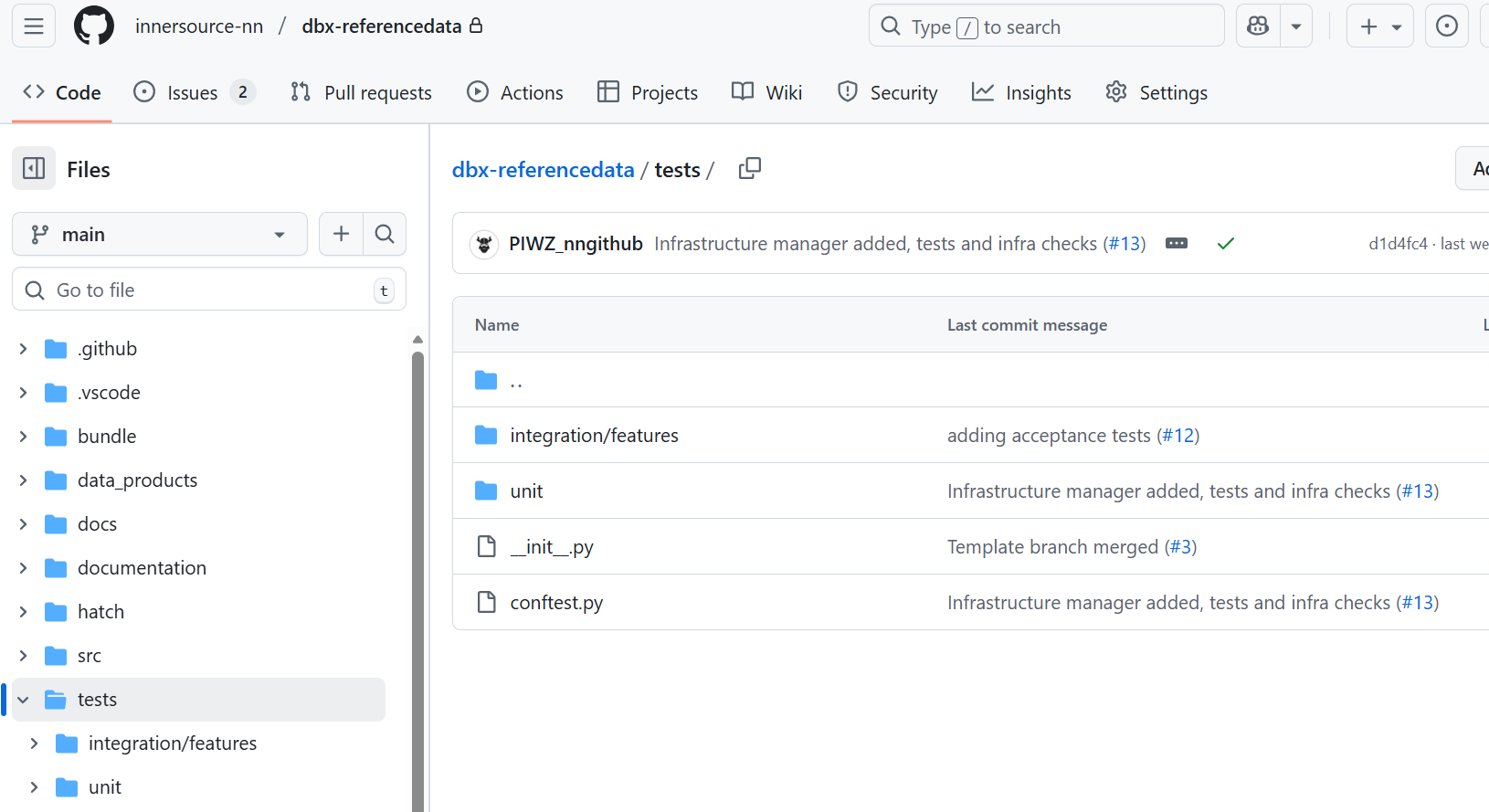
-
Changed relevant documentation
Upcoming as project is still under development
-
Changed the databricks.yml as per the code
- Added relevant whl file
- Added relevant libraries
- Added relevant job cluster
- Added task keys
Hold "Alt" / "Option" to enable Pan & Zoom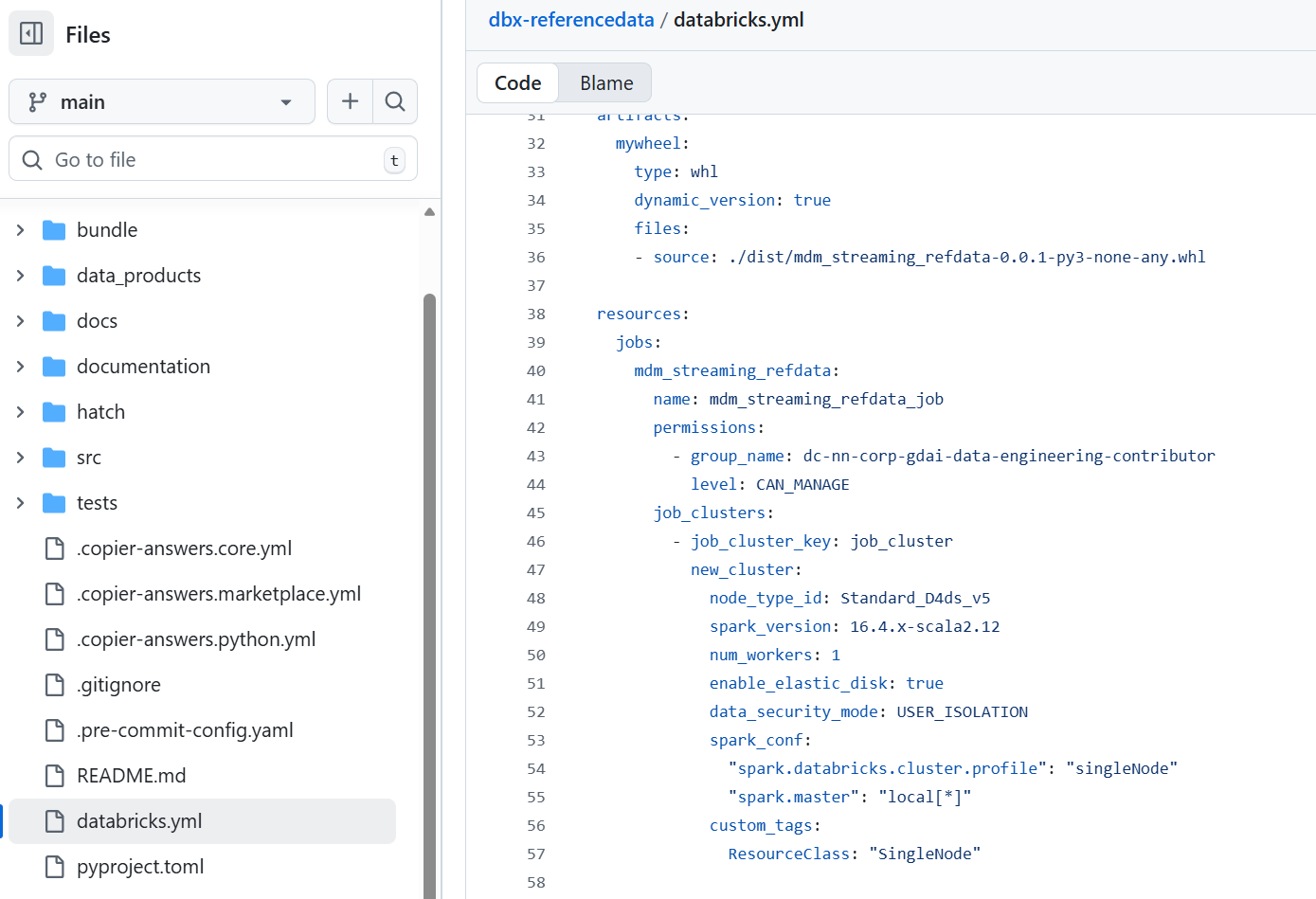
-
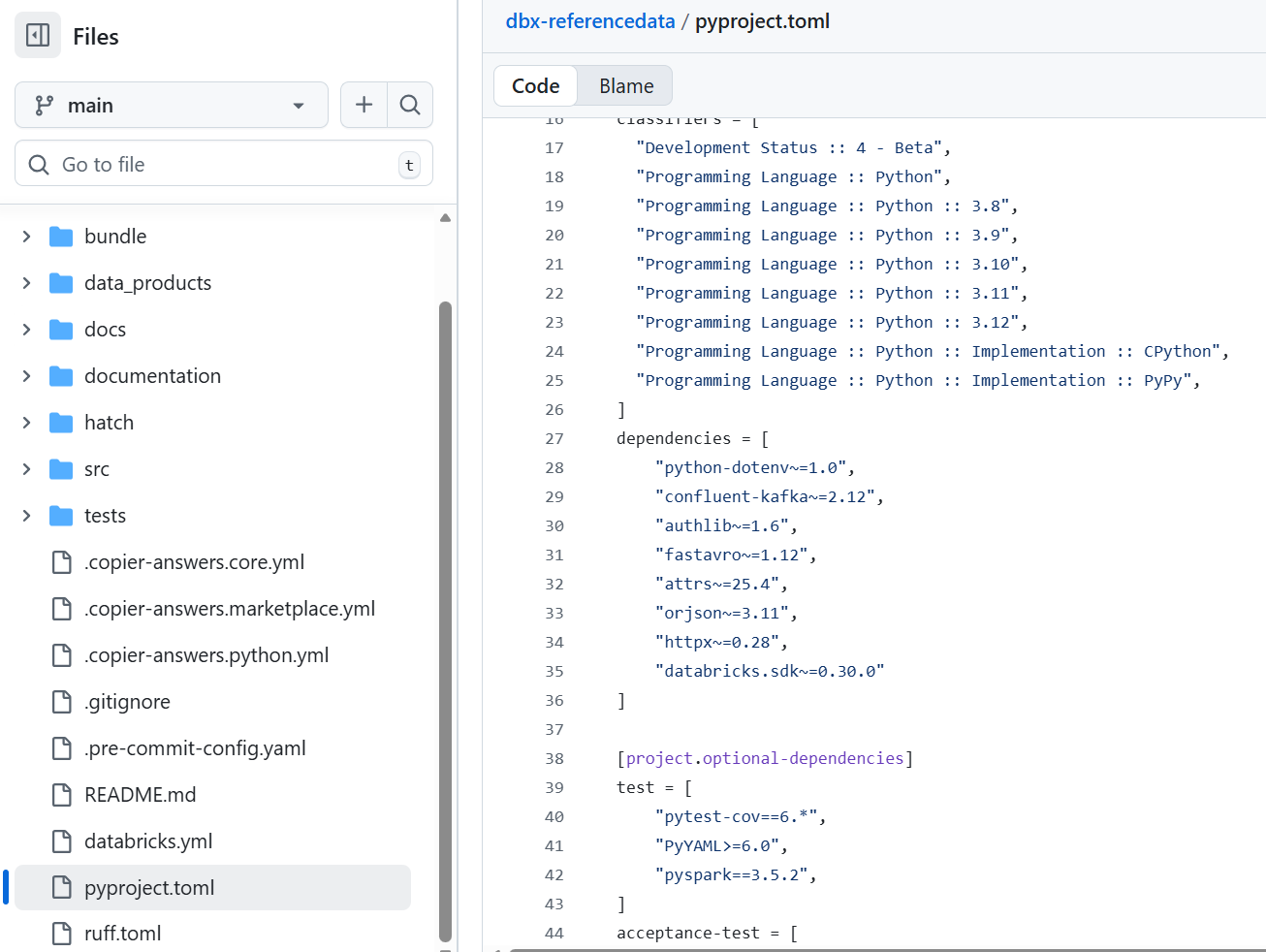
Changed the pyproject.toml
- Added the dependent libraries
- Added the project entry points
- Added the data product folder contents
- Added the behave configuration for acceptance tests
Hold "Alt" / "Option" to enable Pan & Zoom