API to Landing Zone
Overview - How to use an API to get data into the landing zone.#
There are many approaches and patterns in which to receive data into the landing zone (Direct File Ingestion, Streaming Data Ingestion, Data Integration Tools - Tools like Azure Data Factory (ADF), AWS Glue, Talend, or Informatica for automation, APIs / Custom Applications, Database Extraction, File Transfer Protocols and Delta Sharing), this chapter describes one of them which uses an API endpoint to receive the data payload (usually json or xml). The API gateway in Azure is underpinned by a function app (however this could just as easily be achieved using equivalent AWS technology).
Solution Architecture#
In this scenario, the playbook describes the process where external data providers provide data to Novo Nordisk on a daily basis by pushing their data payloads as Json files using an API endpoint.

- Azure function App which is triggered by HTTPS request and loads raw data into landing zone.
-
Publish API to the end consumer through API Gateway (Azure API Management)
-
Test Application that simulates API calls
Azure API Gateway#
An API Gateway is a managed service (offered through Azure API Management) that provides a set of tools to expose, manage, secure, observe, and monetize APIs. In the case of hosting Function Apps, it provides a central entry point for client applications to interact with your backend APIs and enables the enforcement of consistent policies and transformations.
Azure API Gateway provides a unified interface to expose all the Function App endpoints as a single API or collection of APIs.
The Azure function app and API gateway are not hosted as part of the managed datacore environment, while the managed data core environment provides and includes the landing zone setup, in order to setup this scenario, the project team would be required to have their own azure subscription, repository and pipeline setup to deploy the infrastructure, below is a brief explanation of the various components.
How Azure API Gateways Works with Azure Function Apps#
1) Hosting APIs in Function Apps:
- Azure Function Apps host serverless APIs, exposing endpoints to perform specific tasks or services.
- Each Function App or function may expose its endpoint (REST, HTTP-triggered).
2) Exposing via API Gateway:
- The Function App’s endpoints are imported and managed within the API gateway.
- API Gateway handles all communication from the client and forwards authorized requests to the associated Function App endpoint.
3) Securing Endpoints:
- The endpoints in the API Gateway are protected from public direct access by routing requests only via the gateway (e.g., the Function App can be configured with IP restrictions or private access).
4) API Gateway Workflow for a Client Request:
- Client Request: The client sends an HTTP request to the API Gateway.
- Policies: The gateway inspects the request, applies security measures (auth, rate limiting), and may perform data transformations or caching.
- Routing: After the request is validated, it is routed to the appropriate Function App endpoint.
- Response: The API gateway handles the response from the Function App, applies any transformation rules, and sends it back to the client.
This solution uses infrastructure as code to deploy the required infrastructure to create and deploy the API Gateway.
Link to Infra as code repo for the example project.
Function App#
The function app code and project has been created using this as the basic template. By using this template, most of the key plumbing is taken care of for you and is already Novo Nordisk approved.
This project defines the infrastructure for deploying an Azure Function App using Terraform. The configuration provisions resources such as a Function App, Storage Account, Virtual Network, Key Vault, and other dependencies required for the application.
The Azure Function App includes Python logic to process incoming JSON files, validate their structure, and place them in the appropriate locations within the landing zone. Below is an overview of the key steps involved:
JSON Validation and Processing 1) Extracting JSON Body:
- The function extracts the JSON body from the incoming HTTP request using the extract_body method.
- If the JSON is malformed, the function returns a 400 Bad Request response and places the file in the bad_files subdirectory of the landing zone.
2) Validation Against Pydantic Models:
- The JSON body is validated against predefined Pydantic models for each table (e.g., SmartPenModel, UserProfileModel or what ever you would require).
- If the JSON fails validation, the function returns a 422 Unprocessable Entity response and places the file in the bad_records subdirectory of the landing zone.
3) Successful Validation:
- If the JSON passes validation, it is uploaded to the incoming subdirectory of the landing zone.
Let's break this down to understand what the code is doing step-by-step. This code is using the Azure Functions framework to create an HTTP-triggered serverless application that processes incoming requests. It defines multiple routes, processes files, and interacts with a data workspace client.
Function app Code ℹ️#
from functools import partial

import azure.functions as func
import logging
from function_app_utils import (
    process_posted_file,
    get_db_workspace_client,
)

app = func.FunctionApp(http_auth_level=func.AuthLevel.FUNCTION)


@app.route(route="check")
def check(req: func.HttpRequest) -> func.HttpResponse:
    try:
        w = get_db_workspace_client()
        volume_name = (
            "/Volumes/digital_health_catalog_bronze_dev/"
            "kakao_dev_autoloader/landing/kakao/incoming/smart_pen_error_events/"
        )
        for item in w.files.list_directory_contents(volume_name):
            logging.info(item.path)

    except Exception as e:
        logging.info("We failed")
        logging.error(f"Failrue: {e}")
        return func.HttpResponse(
            f"Failed, {e}. This HTTP triggered function executed successfully but with eRROR."
        )

    logging.info("Python HTTP trigger function processed a request.")
    return func.HttpResponse(f"SUCCESS, CHECK LOGS")


HANDLERS_MAP = {
    "smart_pen": partial(process_posted_file, table_name="smart_pen"),
    "medication": partial(process_posted_file, table_name="medication"),
    "walking": partial(process_posted_file, table_name="walking"),
    "user_profile": partial(process_posted_file, table_name="user_profile"),
    "consent_status": partial(process_posted_file, table_name="consent_status"),
    "meal": partial(process_posted_file, table_name="meal"),
    "insulin": partial(process_posted_file, table_name="insulin"),
    "smart_pen_error_events": partial(
        process_posted_file, table_name="smart_pen_error_events"
    ),
    "workout": partial(process_posted_file, table_name="workout"),
}


def register_route(app, route, handler):
    @app.function_name(route)
    @app.route(route=route)
    def http_trigger(req: func.HttpRequest) -> func.HttpResponse:
        return handler(req)


for route, handler in HANDLERS_MAP.items():
    register_route(app, route, handler)
Key Features of the Code#
Azure Functions Framework:
The code defines an HTTP-triggered Azure Functions application with multiple routes.
Dynamic Routing with HANDLERS_MAP:
Routes and their handlers are registered dynamically instead of being hardcoded.
Partial Functions for File Processing:
The process_posted_file function is partially applied with a table_name argument for processing files related to specific data categories.
Databricks Workspace Integration:
Interacts with a data workspace (via get_db_workspace_client()) to fetch and log file paths in a specified directory (volume_name).
Error Handling:
Exceptions are caught, logged, and a response is returned with error details.
Scalability:
The use of HANDLERS_MAP and register_route simplifies adding new routes and handlers dynamically without duplicating code.
Infrastructure#
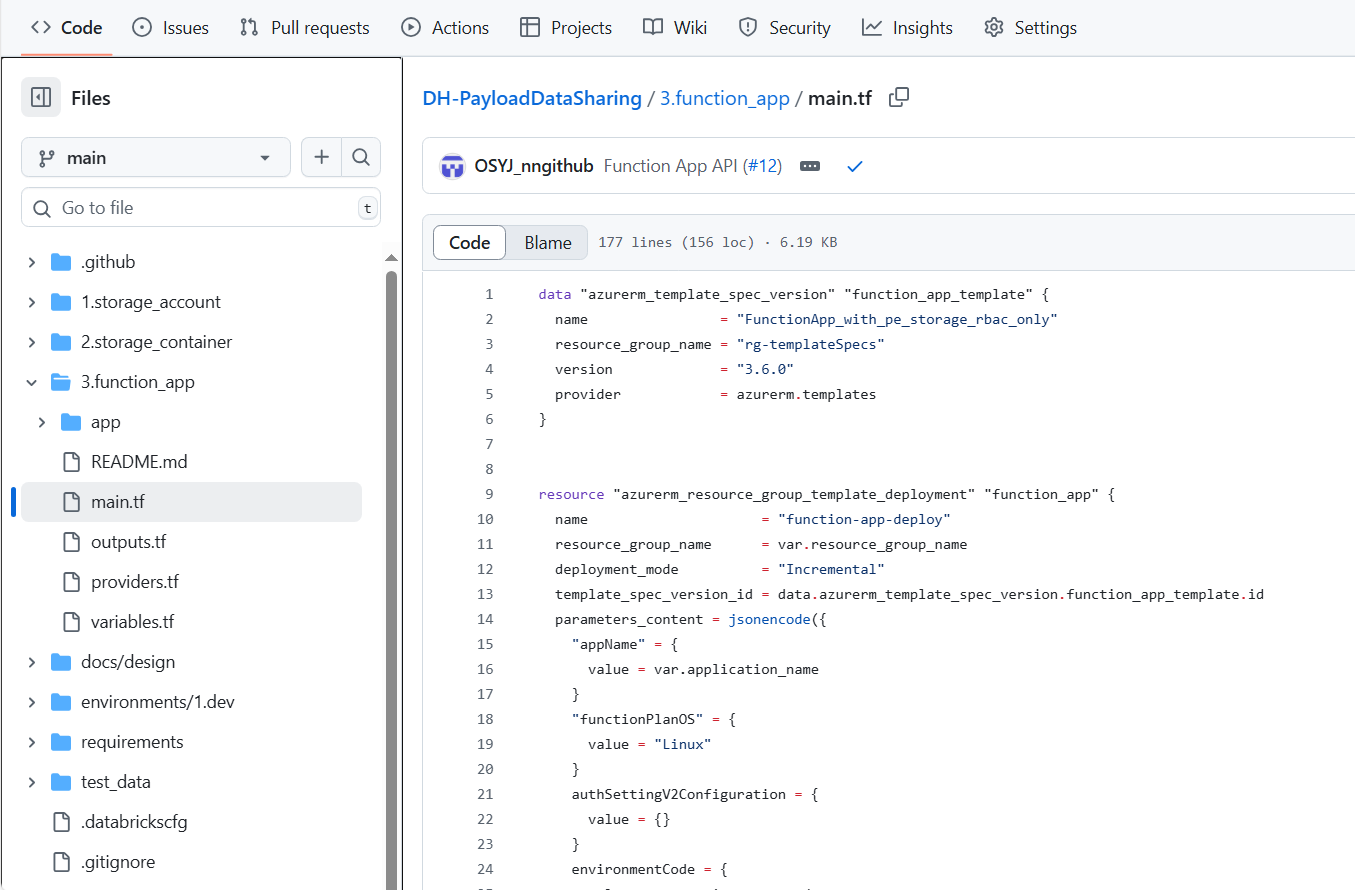
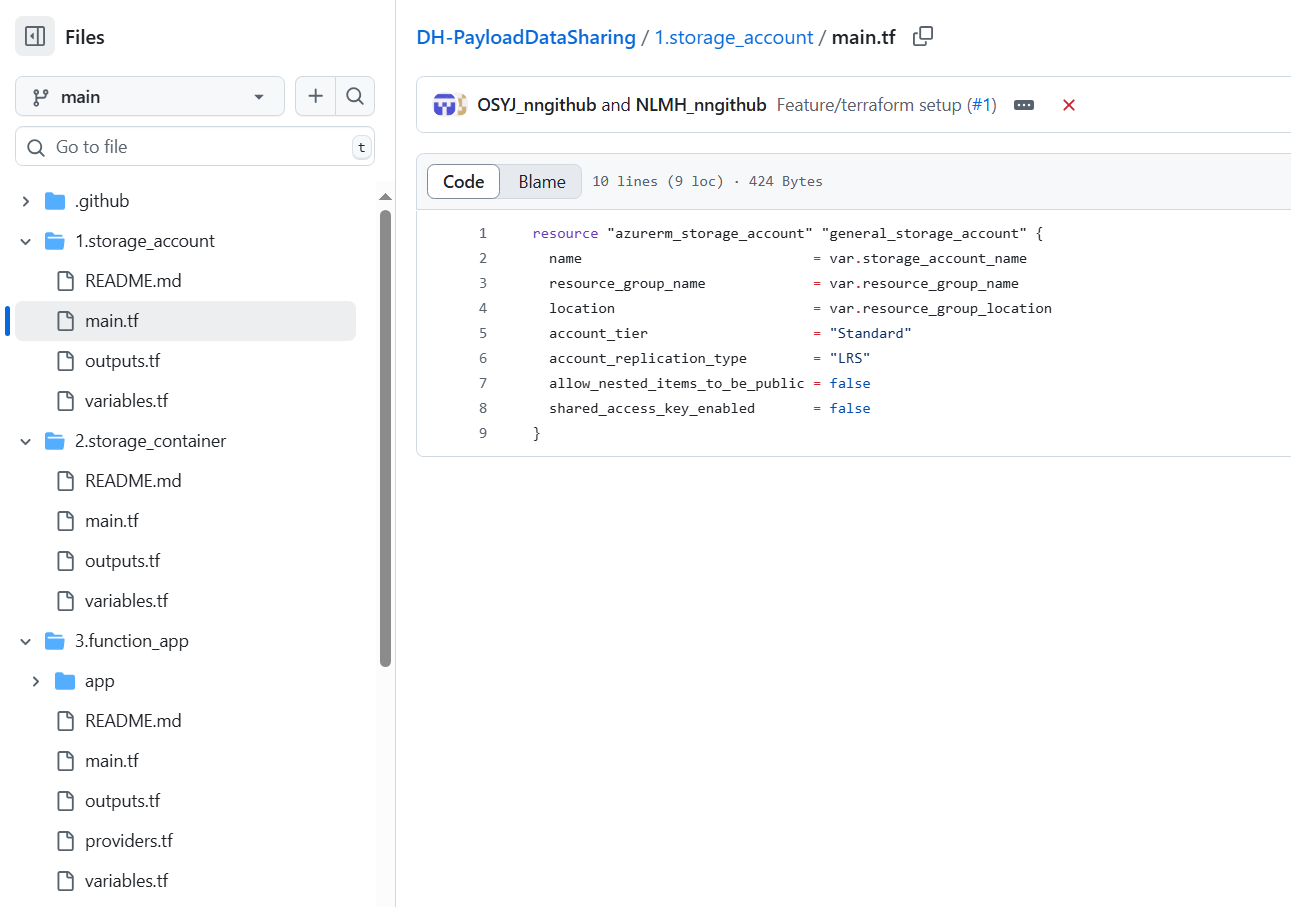
The teraform project structure contain all the infrastructure required to deploy the components of the function app, this includes the webapp, functionapp, vnets, service principles, storage accounts, storage containers.
The image below shows the project setup.
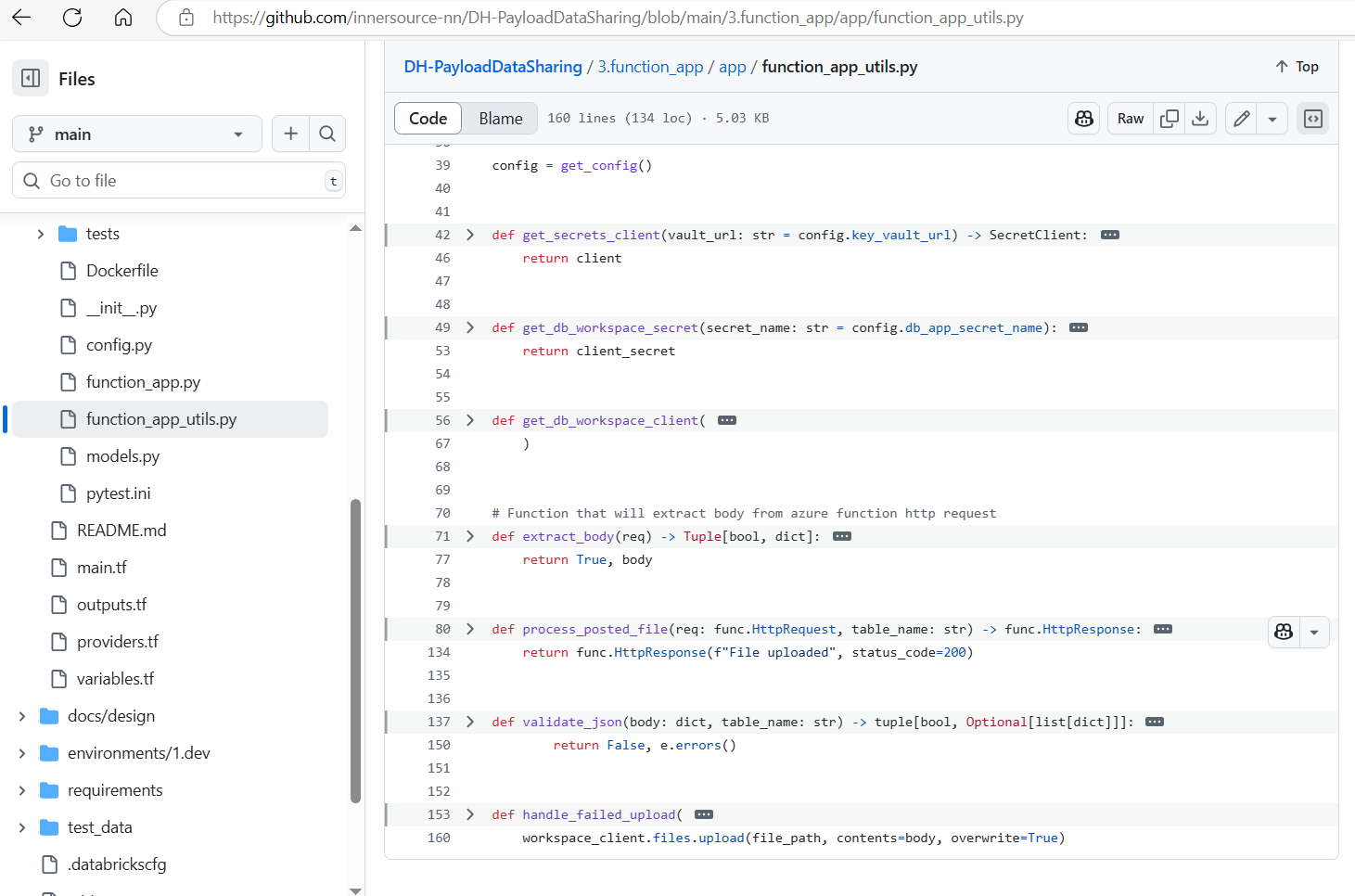
The image above contains the core function to process the file as received through the http request.
The process_posted_file function processes an incoming HTTP request that contains data to be uploaded and validated, and it eventually uploads the data to a file storage location. Here's a step-by-step breakdown of what the code does:
Function Purpose
This function uploads a JSON file (submitted via an HTTP request) to a defined storage path after performing the following steps:
1) Validating the request's pipeline schema. 2) Ensuring the JSON in the body is properly formatted. 3) Validating the JSON data against specific rules (depending on the table_name). 4) Handling invalid data or errors by storing it in a "bad files/records" location. 5) Uploading valid JSON data as a uniquely named file into a specified storage location.
Identity and Access#
The Function App is configured to run as a specific service principle, which is the same service principle configure to have blob storage contributor rights.
Function App Testing#
The testing of the function app is one of the core features in this framework, it allows you to setup different test file scenarios and allows you to test the function app with varying test types.
click here for a link to testing repo. In this page, it is well documented regarding how to setup and execute the different test types.
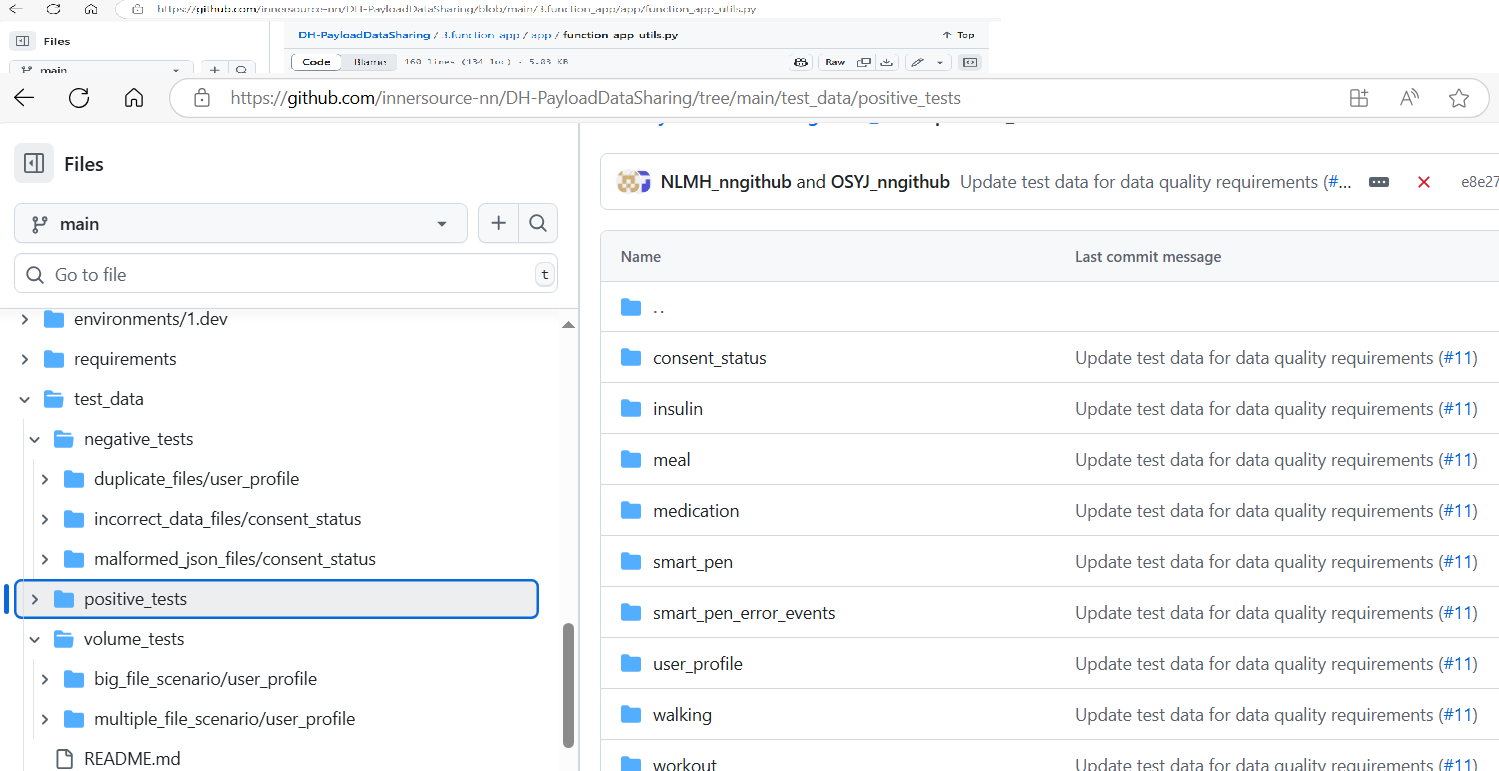
This module helps user to successfully load sample json files for various scenarios to landing zone for testing the databricks jobs.
The files generated are copied to landing zone external location within digital_health_catalog_bronze_<env> catalog, inside the provided schema.
The user needs to provide the external location volume created inside the schema of their choice, this external location volume must be created on top of digital-health-catalog-landing-<env>. The request for creating external location for this purpose needs to be created through DataCore team.
The upload_test_files.yml in ./.github/workflows/ directory defines the workflow to run actions for file upload operations to landing zone.
Landing Zone Setup#
When the API is invoked by the 3rd party provider, the function app is configured and ready to drop the files in to the correct folder. This folder structure is carefully designed to ensure optimal loading, separation for various source systems as well as the ability to handle success and failure files.
The landing zone setup is configured within the function app.
Function app file handling ℹ️#
body_content = json.dumps(json_body).encode("utf-8")
binary_content = io.BytesIO(body_content)

target_landing_zone_path = f"incoming/{table_name}/{file_name}"
file_path = f"{base_volume_path}{target_landing_zone_path}"
workespace_client.files.upload(file_path, contents=binary_content, overwrite=True)